Stiahnuť | Ukážky | Kúpiť teraz | Nápoveda | WebP | Ako na to | História | Fórum
Licencia a registrácia
Licenčná politika Honeycamu Ako zaregistrovať Honeycam Ako získať znova svoj produktový kľúč Porovnanie edícií Honeycamu Pravidlá vrátenia peňazí Ako zrušiť registráciu Honeycamu Ako získať znova svoj produktový kľúč
Funkcie a technické podmienky
Formáty GIF, WebP a WebM Formát APNG Kvantizácia FPS (snímky-obrázky za sekundu) Ako zmenšiť veľkosť súboru Prechod Použiť Dither na vylepšenie obrázkov Maximálna dĺžka záznamu Použiť odkladací priestor na disku Použiť DXGI Priame uloženie vo formáte MP4
Nápoveda o úpravách
Ako vložiť / upraviť / animovať texty Ako vložiť/upraviť/animovať četové bubliny Ako vložiť/upraviť/animovať nálepky Ako použiť efekty fotorámika Ako pridať kreslenie a text do animácie GIF
Tipy pre Honeycam
Ako zachovať kvalitu obrázkov pri opätovnom ukladaní ako GIF Uložiť názov pracovného súboru (ako aktuálneho) po úprave Klávesové skratky pre Honeycam Uložiť všetky nastavenia
Riešenie problémov
Online overenie zlyhalo Vstupný bod nebol nájdený Ako aktualizovať Honeycam Ako spustiť Honeycam ako správca Súbor animácie WebP sa na iPhone neprehráva plynulo Ako bezplatne nainštalovať kodek AV1 Ako riešiť problém, keď sa Honeycam bezdôvodne vypne v priebehu niekoľkých sekúnd po spustení Keď Honeycam zlyhá pri otváraní videa Po uložení animácie do formátu GIF čas prehrávania nie je rovnaký Pri ukladaní súborov GIF je využitie procesora príliš vysoké

How to add and edit stickers

Adding stickers such as emojis and arrows to animated GIFs can make your content more engaging and visually appealing. This help guides how to use Honeycam's sticker feature to add and edit a variety of decorative objects.

Quick summary

  1. Record your screen, or open an existing file to edit
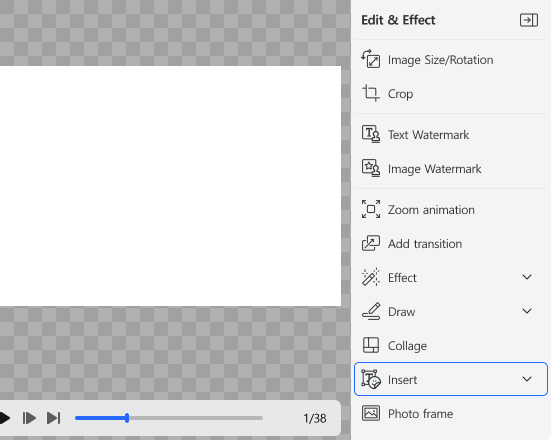
  2. Click Edit & Effect → Insert → New Sticker
  3. Adjust the size and position, and customize the details

1. Open the insert menu

After recording your screen or loading an image to edit, click the Insert button in the Edit & Effect panel on the right side of the screen.


2. Choose and insert a sticker

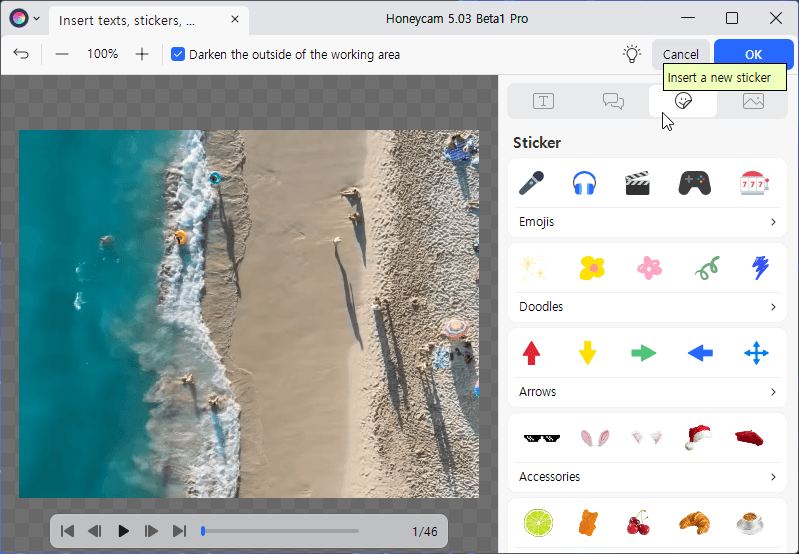
Click the Insert New Sticker button (the third one) at the top of the panel.


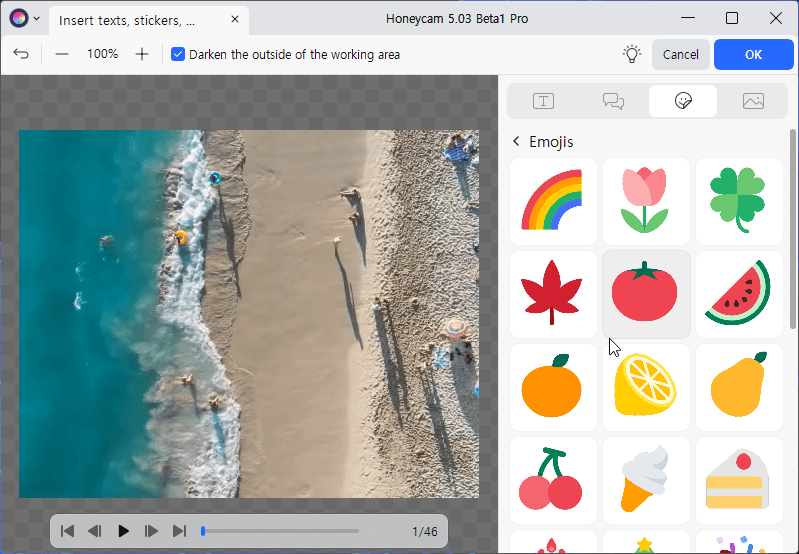
Browse through various categories such as emojis, doodles, arrows, acessories, and food. Click the sticker you want and it will be immediately added to the canvas on the left.


3. Edit the sticker style (layer settings)

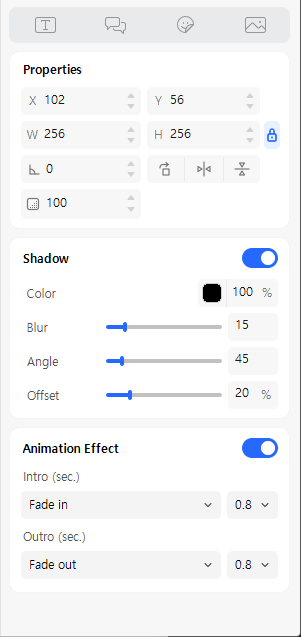
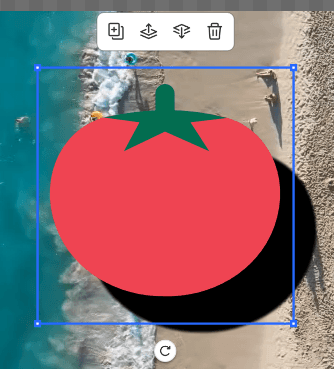
Click the inserted sticker to customize the sticker style in detail. You can access the settings through the panel on the right, and the toolbar shown on the canvas.

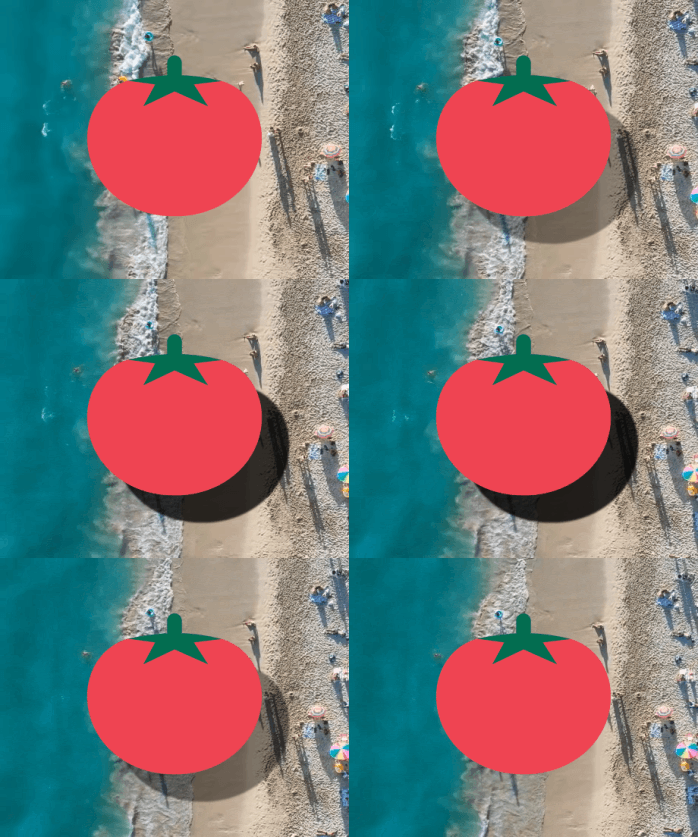
  • Right-side panel: Adjust the sticker's size, position, rotation angle, and opacity. Add shadows and dynamic animation effects.

  • Canvas toolbar: Use the Copy button to duplicate the selected sticker. If multiple objects overlap, use Upward or Downward to adjust the layer structure.

4. Apply and save

Click the OK button. Return to the main editing screen and click the Save button.